


Mobi PDF・Editor・Scanner・Reader
4.44.05K Reviews
App Specs
- Version
- 11.16.270809
- Updated On
- License
- Free
- Downloads
- 10,000,000+
- Developer
- MobiSystems
- Categories
- Business
- Platform
- Android, iOS
Screenshots
 Analysis by AppCompare
Hey there! So, if you're like me and constantly find yourself needing to handle PDFs on the go, then you're in for a treat. I've recently had the chance to dive into Mobi PDF・Editor・Scanner・Reader, and let me tell you, it's quite the nifty app. Whether you're a student, a professional, or just someone who likes to stay organized, this app is worth checking out.
Where trust begins: a practical PDF toolkit
PDFs often hold more than a page of text: they can include personal details, signatures, invoices, or work material. I judge a mobile document tool by whether it helps me finish a task without making me lose track of the file or the choices I’m making. This one comes from MobiSystems and is positioned as a business app, but its everyday appeal is broader: it brings common reading, scanning, editing, signing, and file-combining jobs into one place.
It is free to install, rated for Everyone, and has been available since 2013. Its current version is 11.12.270273, and it supports Android 8.0 and later. The app has a 4.4 average from around 169,000 ratings, with more than 10 million installs. Those figures suggest that it has found a substantial audience, though popularity alone cannot tell me whether a document workflow suits your needs. I’d treat it as a capable general-purpose option, not as a guarantee that every editing or scanning task will feel effortless.
What I can judge—and what I should check myself
There’s an important difference between a tool’s visible document functions and the way it handles information behind the scenes. I can assess the jobs the app offers and the practical choices I make while working, but I wouldn’t infer privacy protections, storage arrangements, or permission behavior without clear, current details. If the PDFs you handle are sensitive, I recommend checking the app’s permissions on your device and reviewing any privacy information and account settings presented in the app before importing confidential material.
That caution is not a reason to avoid ordinary use. It is a sensible habit for any mobile PDF editor, especially one used for contracts, identity paperwork, health forms, or financial records. I’d start with a harmless sample document, notice what options appear when opening, sharing, or saving it, and make sure the destination is the one I intended. A familiar interface can make actions feel quick; pausing before sending a signed file is still worthwhile.
Using the tools with care
I use this section to focus on the small checks that make a mobile PDF workflow easier to trust: keeping a clean original, reviewing a scan before saving, and confirming the destination before sharing. Those habits matter most when a document contains personal details, and they also help me catch ordinary mistakes before they travel. Next, I look at how the app’s tools fit different kinds of paperwork.
All-in-One PDF Solution
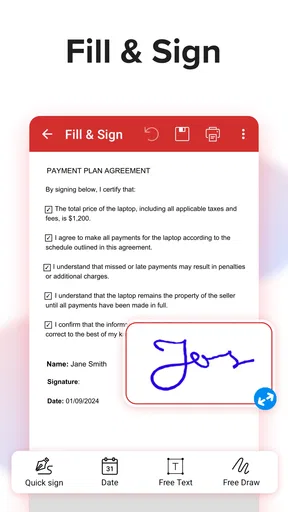
First things first, what sets Mobi PDF・Editor・Scanner・Reader apart is its all-in-one functionality. It's not just about reading PDFs; it’s your personal Swiss Army knife for everything PDF-related. Need to edit some text in a document? Done. Want to scan a paper document and turn it into a PDF? Easy peasy. The app also lets you sign documents digitally, which is a lifesaver when you're in a pinch.
Worth Reading Before You Choose

Flipboard Shows What News Apps Must Do Beyond the Feed

Switching to Android Auto Means Rethinking Your Driving Routine

Google Calendar Makes a Crowded Week Easier to Manage

Ludo King Makes the Most of the Minutes Between Plans

Baby Panda World Brings Quick Play to Modern Phones, but Its Game Library Feels Busy

ESPN’s Live Game View Makes Following Close Games Easier
In practice, having these jobs together can save time when a document moves from paper to phone and then back out for review. A useful workflow is to scan a receipt or form, inspect the resulting pages, add a note or signature if needed, and share the finished file from the same app. I would still keep the untouched original when accuracy matters. A scanned page is an image of a document, while editing an existing PDF changes the file itself; those are different operations, and keeping a clean source makes it easier to recover if a revision goes wrong.
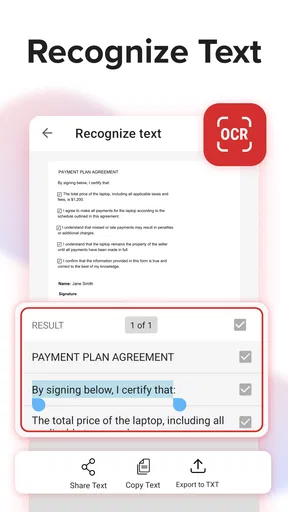
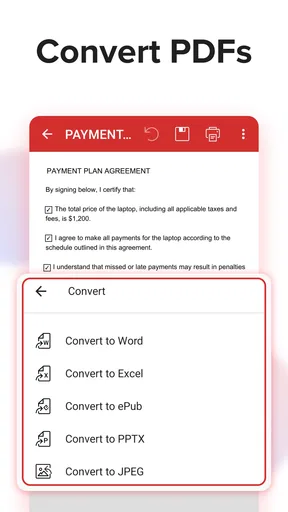
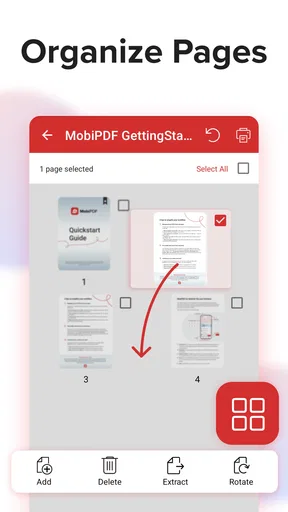
The app also supports converting PDFs to Word, merging PDFs, and OCR, which can help when a document needs to become searchable or be reorganized. OCR is particularly useful for archived paper records, but I would proofread names, dates, and amounts after recognition rather than trusting the result without checking. For a short form, that review takes little effort; for a long, densely printed document, a desktop tool may make quality checking and correction more comfortable.
Intuitive Interface
One of the things I absolutely love about this app is its intuitive interface. You know that feeling when you open an app, and it just makes sense? That's exactly what you get here. The navigation is smooth, and everything is right where you'd expect it to be. Even if you’re not super tech-savvy, you’ll find yourself breezing through tasks like a pro.
That simplicity is most valuable when the task is clear and small: open a file, read it, mark a passage, or send it onward. For less familiar work, I’d slow down and check the output before sharing. Text edits, OCR, and document conversion can affect layout, so scan the pages after making changes, especially where a line break, table, or signature block matters. A quick visual review is a better safeguard than assuming a file will look identical on every device.
Scanner Functionality
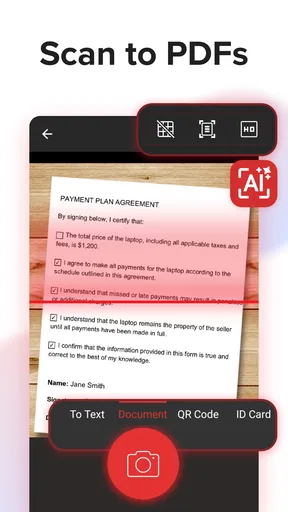
Now, let’s talk about the scanner feature. This is where the app really shines. You can scan documents using your phone's camera, and the app automatically enhances the image to make the text crystal clear. It’s like having a mini scanner in your pocket. Plus, with batch scanning, you can handle multiple pages in one go. Perfect for those of us who like to keep things efficient!
A realistic use for this is collecting several pages of a signed paper form after an appointment. I’d place each sheet on a contrasting, flat surface, check that the whole page is in frame, and review every captured page before saving the batch. That small pause helps catch a curled corner, a shadow, or a page captured out of order. For a one-page receipt, the phone camera is wonderfully convenient; for tiny print, faint pencil, or a large stack of paperwork, a dedicated scanner can produce a more dependable starting image.
Before scanning anything private, consider what the page contains and whether you need a digital copy on your phone at all. If you do, give the file a recognizable name and put it somewhere you can find later. I find that naming a scan by its purpose rather than leaving a generic camera-style label is a simple way to avoid sending the wrong attachment when several documents look similar.
Editing and Annotation
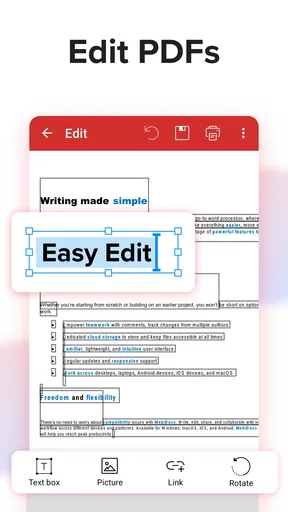
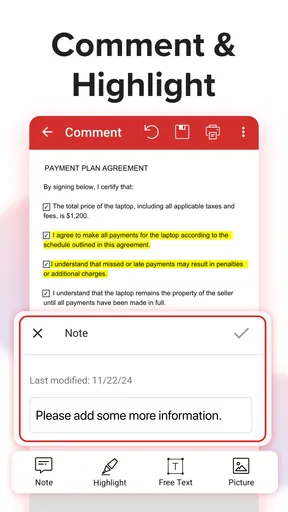
Editing PDFs can often be a headache, but not with this app. It offers a suite of tools to make changes to your documents. From adding text and images to highlighting and underlining, you’ve got everything you need at your fingertips. I personally found the annotation tools super helpful for marking up documents during meetings or study sessions.
I’d distinguish between marking a document for myself and altering a file that will be treated as an official record. Highlights and notes are useful for review, but edits to text or added images can change how the document is understood. When collaborating, I prefer annotations that make my comments visibly separate from the original content. Before sending, I reopen the saved version and check that the notes are readable and that nothing important has been covered.
For a student, that might mean highlighting a reading and adding a question beside a paragraph; for a colleague, it could mean marking a clause for discussion before a meeting. If several people need to edit the same material at once, a dedicated collaboration platform may be a better fit than passing copies back and forth. A mobile PDF editor is strongest for direct, individual document work, not necessarily for coordinating a complex review process.
Reading Mode
When it comes to reading PDFs, this app doesn’t disappoint. The reading mode is clean and clutter-free, allowing you to focus on the content. You can easily adjust the brightness and switch to night mode for those late-night reading sessions. The app also supports various viewing options, so you can choose what works best for you.
For a long report, I’d use the phone for quick checks and short reading sessions, then switch to a larger screen if I need to compare pages, examine detailed diagrams, or work through dense tables. The mobile view is convenient when I’m away from a desk, but screen size remains a real constraint. A comfortable reading mode helps with ordinary text; it cannot make small technical print as easy to inspect as it would be on a tablet or computer.
Sharing without losing track
Sharing documents is a breeze with Mobi PDF. You can send your PDFs via email or directly share them with other apps on your device. It’s perfect for collaborating with colleagues or classmates. The app ensures that your files are shared securely, which is always a plus in today’s digital age.
When a file includes personal information, I don’t rely on a general sense of security; I check the recipient and destination in the sharing flow before confirming. A practical habit is to open the attachment once more after exporting, verify the pages and filename, and then send it only to the intended person. If you use a shared device or email account, be especially deliberate about which account receives the document. Those checks are useful regardless of which PDF app you choose.
The free starting point makes it easy to try the everyday workflow, but the app also offers in-app purchases ranging from $4.99 to $149.99 per item. I’d test the specific task I care about before paying for anything: try opening a representative file, check whether the edit or conversion gives the result I need, and see which tools are available in the version I’m using. The price range is broad enough that I would not assume every feature is included at no cost, or that one purchase covers every possible need.
Offline Access
One of the underrated features is offline access. You can download your files and work on them even when you're not connected to the internet. This is a game-changer for those long flights or when you’re stuck in a no-WiFi zone.
Offline access is most helpful when you plan ahead: save the files you expect to need before travelling, then open them while disconnected to make sure they are available. I wouldn’t wait until boarding or arriving at a place with poor reception to find out whether a document is stored locally. It also makes the app useful for a simple field workflow—review a form, add notes, and prepare it for later sharing—while keeping in mind that sending it will require whatever connection the chosen sharing route needs.
Choosing the right tool for the job
Compared with using a basic PDF reader, this app brings scanning, annotations, signatures, OCR, conversion, and merging into the same mobile workspace. That breadth is convenient if your documents regularly move between paper and PDF. A basic reader may be a better choice if you only need to open and browse files and would rather keep your device setup minimal. A desktop editor is preferable when exact layout control, long-form editing, or careful comparison across pages matters more than portability.
I’d recommend this app most to people who handle a mix of everyday paperwork and reading on their phone: students reviewing handouts, freelancers signing forms while away from a desk, or anyone who occasionally needs to scan and send a document. I’d be more cautious if your work depends on highly precise document production, simultaneous team editing, or a strict handling process for confidential records. In those cases, choose a tool that clearly fits the organization’s requirements and test it with approved sample files first.
Final Thoughts
All in all, Mobi PDF・Editor・Scanner・Reader is a powerhouse app that can handle all your PDF needs with ease. It’s user-friendly, packed with features, and makes managing documents a whole lot simpler. If you find yourself frequently dealing with PDFs, I’d definitely recommend giving it a try. Trust me, once you’ve got it on your phone, you’ll wonder how you ever lived without it!
My recommendation comes with a practical limit: it is a good fit when convenience matters and the work is manageable on a phone, not a universal replacement for a scanner, desktop editor, or specialist team workflow. I’d begin with a low-stakes document, confirm that scanning and editing produce the result I expect, and check the available purchase options before relying on a paid tool. Used with that bit of care, it can be a useful pocket workspace for ordinary PDF tasks without asking you to change how you handle every document.
Pros
- Intuitive user interface for easy navigation.
- Supports multiple file formats seamlessly.
- High-quality scanning with OCR capabilities.
- Allows cloud backup and synchronization.
- Customizable annotation tools for PDFs.
Cons
- Limited free features; subscription needed.
- Occasional lag with large files.
- Ads can be intrusive in free version.
- Requires internet for some features.
- No collaboration features for team use.
FAQs for Mobi PDF・Editor・Scanner・Reader
What is Mobi PDF・Editor・Scanner・Reader and what are its primary features?
Mobi PDF・Editor・Scanner・Reader is a comprehensive mobile application designed for managing PDF files. Its primary features include editing PDFs, scanning documents using your device’s camera, and reading PDF files with ease. It supports annotations, text highlighting, and offers cloud integration for storing and sharing documents. This makes it an essential tool for both personal and professional use.
Is Mobi PDF・Editor・Scanner・Reader available for both Android and iOS devices?
Yes, Mobi PDF・Editor・Scanner・Reader is available for both Android and iOS platforms. Users can download it from the Google Play Store for Android devices and the Apple App Store for iOS devices. It’s designed to offer a seamless experience across different operating systems, ensuring accessibility and convenience for all users.
Does Mobi PDF・Editor・Scanner・Reader require an internet connection to function?
While Mobi PDF・Editor・Scanner・Reader can perform basic functions like reading and editing PDFs offline, certain features such as cloud storage integration and document sharing require an internet connection. To fully utilize the app’s capabilities, accessing its online features is recommended, especially for backing up and sharing documents.
Are there any subscription fees or in-app purchases associated with Mobi PDF・Editor・Scanner・Reader?
Mobi PDF・Editor・Scanner・Reader offers a free version with basic features. However, to unlock advanced functionalities such as enhanced editing tools and additional cloud storage options, users may need to subscribe to a premium plan or make in-app purchases. This enables users to tailor the app to their specific needs.
How user-friendly is Mobi PDF・Editor・Scanner・Reader for beginners?
Mobi PDF・Editor・Scanner・Reader is designed with user-friendliness in mind, featuring an intuitive interface that is easy to navigate. Beginners can quickly learn how to use its basic functions, such as reading and annotating PDFs. For more complex features, the app includes helpful tutorials and a customer support option to assist users in maximizing their experience.


